 . New phrases can be added, and defunct phrases deleted. They are only saved locally on your system.
During Online-Speech Recognition in the Recorder Dictation Window, you can speed up your work by using "Phrases". These function as macros, and should be used for passages of text that are often repeated in identical form. Such phrases can be added to documents from the Phrase List in the Recorder command menu . New phrases can be added, and defunct phrases deleted. They are only saved locally on your system.
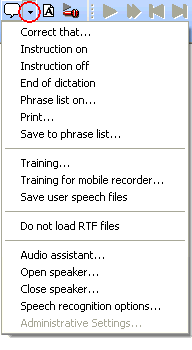
Use the mouse to select the text block that is to be the new phrase, including any line breaks, and say the command "
S
ave to Phrase List
". The same result can be obtained by clicking on the menu option of that name in the Recorder command Menu
.
 On speaking or clicking on the command
"
save to Phrase List
" the entire selected text will be saved
The first saved phrase will be saved as No. 1, the next as No. 2 and so on. If a phrase is deleted, the next phrase to be added will be given the number freed up.
The first line of a phrase's text will be used as the name of the phrase in the Phrase List
On speaking or clicking on the command
"
save to Phrase List
" the entire selected text will be saved
The first saved phrase will be saved as No. 1, the next as No. 2 and so on. If a phrase is deleted, the next phrase to be added will be given the number freed up.
The first line of a phrase's text will be used as the name of the phrase in the Phrase List
Position the cursor in the text at the point where the phrase should be inserted. Open the Phrase List with a mouse-click in the Recorder Menu
or by saying the command
"
Phrase List on
".
Select the phrase to be inserted by left-clicking on it and either clicking or saying
"
Take
". Alternatively, simply use the phrase number e
.
g.
"
Take one
"
. The phrase will be inserted into the text.
Only one phrase at a time can be inserted into the text.
Open the Phrase List with a mouse-click in the Recorder Menu
or by saying the command
"
Phrase List on
"
.
Left-click on the phrase to be renamed to select it, then right-click on it.
Select the menu option "Rename", enter the new name and confirm with .
Click to close the Phrase List.
Open the Phrase List with a mouse-click in the Recorder Menu
or by saying the command
"
Phrase List on
"
.
Left-click on the phrase to be deleted to select it, then right-click on it.
Select the menu option "Delete" and confirm the delete with .
Click to close the Phrase List.