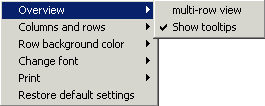
Using the View options you can decide whether whether helpful tool tips should be displayed when the mouse is over certain areas of the screen, and whether dictation information should be shown on one or many rows. If multi-row view is active, and more columns are visible than can be displayed on one line, each dictation's information will appear spread over two lines.
These options are found by right-clicking on the Dictation Overview and selecting "View / multi-row view" or "View / Show tool tips."
To change the height of the rows in Dictation Overview, right-click and select "Columns and Rows / Change row height."
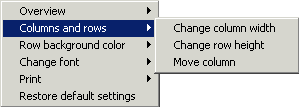
Once this option has been activated (indicated by the check symbol) the row height can be changed by left-clicking and holding on the gray area on the left of Dictation Overview on the line between two rows, and then dragging the rows to the required height. It is also possible to change column width.
 Once the desired row height has been set, deactivate the Change row height option by selecting "Columns and Rows / Change row height"
once more.
Once the desired row height has been set, deactivate the Change row height option by selecting "Columns and Rows / Change row height"
once more.
Set the background color of the rows by right-clicking in Dictation Overview and choosing the menu option "Row background color " followed by the desired color scheme.
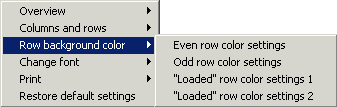
The "Loaded row color settings 2" is for dictations you have loaded, default bright green.
The "Loaded row color settings 1" is for dictations colleagues have loaded, default olive green.
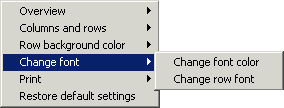
Change the font by right-clicking in Dictation Overview and selecting "Change Font" and then either "Change Font Color" or "Change Row Font"
To restore default settings, right-click on the Dictation Overview and choose the menu option "Restore default settings". Bear in mind that in choosing this option, certain personal settings may be lost. Any custom column names (of the File, Ready by, Column 1 and Column 2 columns) will, however, not be lost.
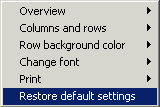
Recorder/Player must be restarted for the restored settings to be activated.