Columns
Making columns visible / invisible
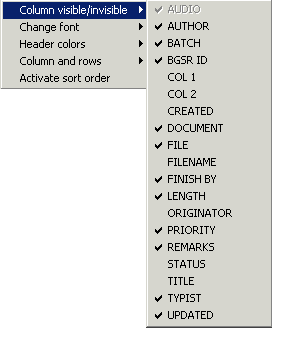
The columns in the Dictation Overview can be made visible or invisible. Right click on any column header (i.e. on the title at the top, e.g. "Author") and choose the menu option "Make column visible / invisible" to see a list of all columns Column names with a check symbol are visible in Dictation Manager. Click on the name of a column to add/remove the check.
|
|
-
 Click on a column name in the graphic left to find out more. Click on a column name in the graphic left to find out more.
-
Column "A" is displayed here with its full name of "Audio", and is grayed-out, as this is the one column that cannot be made invisible.
-
The names of the "File", "Col 1", "Col 2" and "
Finish by
" columns can be set by the user (for example, to: Project, Client, Patient etc). You can do this with the Change header caption option.
|
Change column width
Column widths can be set by the user. Right-click on the column heading and select the menu option "Columns and Rows / Change column width".
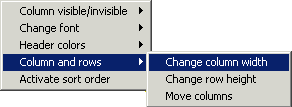
To change the column width, hover the cursor over the line separating two columns in the column headings, then left-click and drag the column to the required width. It also possible to change row height.
-
Once all columns have the desired width, re-select the "Change column width" menu option. This will remove the check and deactivate the function.
Moving columns
Right-click on the column headings and select the menu option "Columns and Rows / Move columns". A check will appear next to the option "Move columns" to show that this function has been activated.
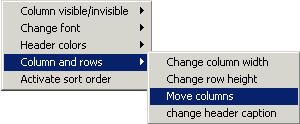
Left-click on the heading of the column to be moved. This will select the column. Left-click a second time on the column heading and hold; you can now drag the column left or right to a new position. The red arrows show where the column will be inserted once the left mouse button is released.
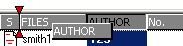
Once all the columns have been moved to the correct position, it is recommended that the "Move columns" function is deactivated (i.e. with no check showing next to it on the menu), so that accidental moving of columns is avoided. Furthermore the column sort function cannot be used when "Move columns" function is active.
Renaming columns
Four columns ("File", "Col 1", "Col 2" and "Finish by") can be renamed. Right-click on the column heading of one of these three columns and select the menu option "Columns and Rows / Change header caption".
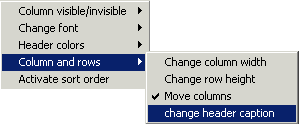
The current column name appears highlighted.  Type in the new new for the column (e.g. Project, Patient, Client etc) and press the [Enter] key.
-
The new column name will appear in the list of visible/invisible columns once Dictation Manager has been closed and re-started.
-
When Col 1 and/or Col 2 custom columns are renamed, they will appear in the Save menu so that users can enter their own custom information.
Change header font
The user can set the font used in the column headings. To do so right-click on the column headings, and select the menu option "Change Font / Change Header Font".
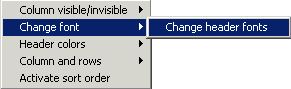
Font color
The user can set the font type and color of the rows in the Dictation Overview. Right-click on one of the columns and select the menu options "Change font / change font color" or "Change font / change row font".
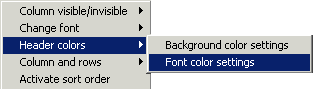
Sorting Dictations
The list of dictations in Dictation Overview can be sorted in ascending A-
Z
or descending
Z
-A order. To sort by a single column , left click on that column's heading. Left click again to reverse sort . The sort direction is also indicated by an up or down arrow.

The dictations can be sorted on multiple columns if this option has been selected and activated in . You can switch between single- and multiple-column sorting by right-clicking on a column heading and selecting "Activate Sort Order". A check symbol here indicates that the sorting will be carried out as shown in .
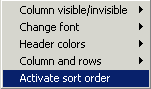
-
Single-column sorting can only be performed when the "Move Columns" function has been deactivated.