 Delegated Correction in the Player is not possible if the Single-user mode was enabled at the Recorder workstation.
When incorrectly recognized text is corrected in this mode, in Recorder or Player, the user profile (speech files) is updated and the recognition is continually improved. This means less correction effort with every new dictation.
Delegated Correction in the Player is not possible if the Single-user mode was enabled at the Recorder workstation.
Correction in Recorder
You can use the keyboard, mouse and speech commands to correct recognition errors, or change the content of the dictation.
The most efficient method is to use the speech commands "Correct that!" or "Correct <incorrect_word> !" to make changes. The typist will not hear these commands later in the audio file.
The master profile is only updated when closing the user and the question "Your user
speech files have changed. Save changes now?" is answered with Yes.
Correction in the Player
There are 4 possible methods of correction:
1. Using the "Spell" dialog box
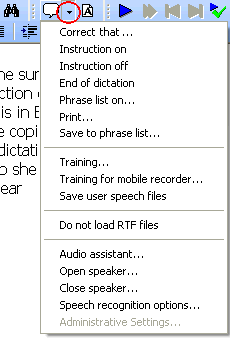
2. Using the "Correct that..." function in the Player command menu (small speech-bubble symbol)
3. Using the "Correct that..." function in the context menu (right mouse click).
4. Using a double-click on a word to bring the Correction function, when the Dragon option is enabled
Correction using Spell dialog
The typist can move from word to word using the [CTRL] + [Cursor arrow right/left] key combination. Using the [SHIFT] and [CTRL] keys will select the corresponding word(s).
When the typist selects some text in this manner, the Spell dialog opens immediately and the corresponding passage is played back. The correction can then either be entered directly in the top text line, or selected from the numbered alternatives 1 to 9 in the list below.
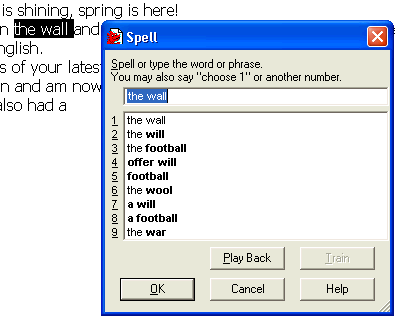
 Using [ALT] + [number] on the keyboard will select that alternative from the list.
Correction using "Correct that..."
The correction process is very similar to the Spell dialog method apart from the selection procedure. The relevant section is selected using mouse or keyboard and then the "Correct that..." function started, either:
- from the command menu (a little right from the small speech-bubble symbol in the Player function bar)
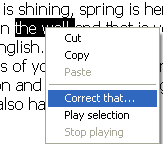
- or a right-click on the marked text and then a normal left-click on the "Correct that..." function.
Using the [-] hotkey on the numeric keypad or [CTRL + K] will also start the "Correct that" function.
Correction using double-click
The Dragon NaturallySpeaking option (Dragon bar: Tools >> Options...) "Enable double-click to correct" on the Correction tab must be enabled first for the user.
A double-click on a word or short phrase will bring the Correction dialog.
The master profile is only updated when closing the user and the question "Your user
speech files have changed. Save changes now?" is answered with Yes.