 Options / Speech Recognition
Options / Speech Recognition
Options / Speech Recognition
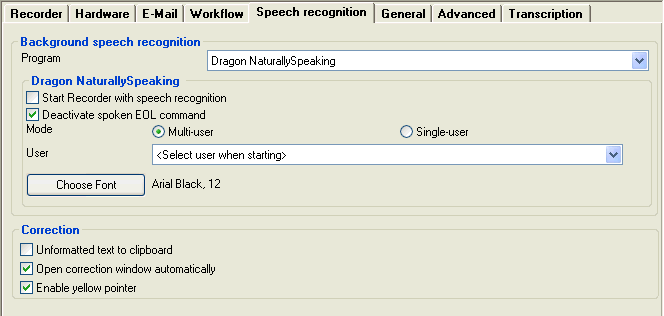

 Click on the above graphics for more information
Program
To use speech recognition, choose one of the following programs from the dropdown list:
Start Recorder with Speech Recognition
Activate this option to start the speech recognition program automatically when the Recorder is started.
Deactivate spoken EOL If background noises, coughing or other sounds are being recognized incorrectly as the speech command "E O L" during speech recognition, then the "Save and close" commands can be deactivated using this option.
Multi/Single-User mode
The Single-User option disables the new multi-user functions from Dragon V8 upwards to make the Workflow backward-compatible with previous processing methods. This means that the delegated correction, further dictation in saved texts and synchronized playback pointer functions are not available. Single-User mode is based on .wav and .rtf files for the dictations.
Select Multi-User if you require Delegated correction, further dictation in saved texts and synchronized playback pointer functions. Multi-User is based on .dra files and uses the DictaPad window for speech-recognition.
Choose font
The standard font style and size is set here.
Default User
The standard Dragon NaturallySpeaking user can be selected from all the possible users available so that the "Open user" dialog is not displayed at each start of Recorder.
Unformatted text to clipboard
If this option is not activated, formatted text in the Correction Window will be saved to the clipboard. Activate the option is you prefer to control the text format after pasting into your word-processing software, e.g. MS Word.
Open Correction window automatically
Activating this option will automatically open speech-recognized text in the Correction Window when loading a speech-recognized dictation in Player. If text is not from Dragon V8 or above, or Single-user mode was selected by the author, then the ClipWriter Window will be opened.
When speech-recognition is not used, the ClipWriter Window will be opened, when this option is active, allowing the typist to type up dictations independently of any word-processing software and without needing a footswitch.
This option is not displayed in Multi-User mode because the function is always active.
Enable yellow
pointer
The yellow, synchronized playback pointer in DictaPad can be disabled if required.
Even when this option is selected, a finished dictation can still be manually sent for speech recognition at a later date.