 ClipWriter window
ClipWriter window
ClipWriter windowClick on this symbol after loading a dictation in Player. The ClipWriter window will appear automatically if the appropriate Option for Dragon NaturallySpeaking has been activated in .
The window allows the user to
type up text easily,
even without a footswitch, or correct speech-recognized text and then format the
document. The text can be edited and saved, or pasted to another Windows word-processing program
using [CTRL
+
V].
The Save/Complete function, button
 , will always save the complete text and copy it to the
Windows clipboard before moving the dictation to the completed folder.
, will always save the complete text and copy it to the
Windows clipboard before moving the dictation to the completed folder.
In Player, speech-recognized texts are
indicated by the  symbol in
Column "A" of
Dictation Overview. The window will be opened with this text when the dictation
is loaded into the Player.
symbol in
Column "A" of
Dictation Overview. The window will be opened with this text when the dictation
is loaded into the Player.
 Dictations from older versions of Dragon
(i.e. 5.0,
XP, 7.x) are loaded into the ClipWriter window
Dictations from older versions of Dragon
(i.e. 5.0,
XP, 7.x) are loaded into the ClipWriter window
Dictations from Dragon 8.0 or
above will be loaded using the Correction
Window.
If Single-User
mode is activated in
Options / Speech
Recognition, then Dragon 8
(or above) dictations are loaded into the ClipWriter window.
Previous versions of Dragon (i.e. 5.0, XP, 7.x) are based on .WAV format and use an alternative process, so ClipWriter uses a different layout for these dictations. Click on the graphic below to find out more, wherever the cursor turns into a hand.
When the "ClipWriter keyboard shortcuts" option is activated, the Function keys at the top of the keyboard can be used to control playback. Start the playback with [F3] and the Player will start to play the first 3 seconds of the audio dictation. Start typing your transcription of this first passage immediately in the ClipWriter window. When you stop typing (i.e. when the passage is correctly transcribed) for about 1 second, then the next 3-second block is played back automatically; no need to press any key! Type this up too and pause when this text block is complete. The next passage is also played back automatically and so forth, until the complete dictation is transcribed. If a passage has been completely played back and you accidentally stop typing for more than a second, then the next block will start automatically. Pause the playback at any time with [F10].
You may wish to practice a little to get into the rhythm but
you will soon find that it is quicker than using a conventional footswitch!
Other function keys can be used to stop, start, rewind, QuickBack etc.
Click on the  symbol to see
the layout (shown below) of ClipWriter keyboard functions. When you improve your skill, then try [F5] or [F7] to playback 5 or 7-second
blocks respectively. The full list of
Function keys for Player is defined in this help. You could set the
rewind on stop option to 1 second
on the Player tab in order to repeat the last word of each block.
symbol to see
the layout (shown below) of ClipWriter keyboard functions. When you improve your skill, then try [F5] or [F7] to playback 5 or 7-second
blocks respectively. The full list of
Function keys for Player is defined in this help. You could set the
rewind on stop option to 1 second
on the Player tab in order to repeat the last word of each block.

Text can be formatted using the mouse. First select the text to
be formatted, then use the following buttons:
| Button / Dropdown list | Function |
 |
Select font |
 |
Select font size |
| B | bold |
| I | italics |
 |
underline. |
 |
left justify |
 |
center |
 |
right justify |
|
|
ClipWriter keyboard help. Check that the "ClipWriter keyboard shortcuts" option is first activated to use this function. |
Click on the  symbol to save corrected text to the associated
.RTF file and to the clipboard. The text can be pasted using
[Ctrl + V] into another word-processing program.
symbol to save corrected text to the associated
.RTF file and to the clipboard. The text can be pasted using
[Ctrl + V] into another word-processing program.
ClipWriter texts are then shown as a
symbol in
Column "A" of the Dictation Overview.
Click on the Recycle bin symbol
 to discard the last text changes
and clear the window. The original text, saved before this dictation was
loaded or by the last click on the diskette symbol
, is kept intact.
to discard the last text changes
and clear the window. The original text, saved before this dictation was
loaded or by the last click on the diskette symbol
, is kept intact.
The last saved text is always
available in the Windows clipboard. You could retrieve this by using Paste
or
[Ctrl + V].
A backup of the
.RTF file is made
automatically after 40 keystrokes.
Click on the
 symbol to print to the default printer.
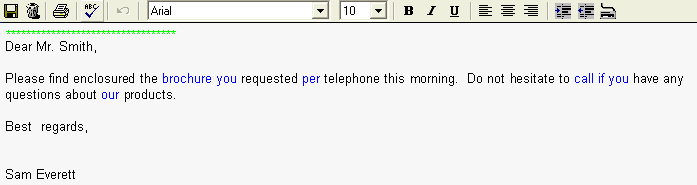
The green stars indicate audio passages that contain instructions for
the typist from any Author using Speech recognition and should not be
transcribed. They will be automatically removed when text is pasted into a word-processing
document.
Blue text
shows passages that have been manually added in Recorder and do not have any corresponding
audio passage. When the text is moved from the Correction Window the blue color
will be removed. If the Author used the special
Correction Mode in Recorder, then those
corrections will not have any corresponding audio passage.
Click on the  symbol to put all selected words into the correction list - this will improve
the vocabulary and performance of the speech recognition engine. Only select
single words that are correctly spelled. The list is specifically for
the author who dictated the text. The author can import and train
these words later in Recorder, using the Dragon Vocabulary Assistant.
symbol to put all selected words into the correction list - this will improve
the vocabulary and performance of the speech recognition engine. Only select
single words that are correctly spelled. The list is specifically for
the author who dictated the text. The author can import and train
these words later in Recorder, using the Dragon Vocabulary Assistant.