 Options / Player Options / Player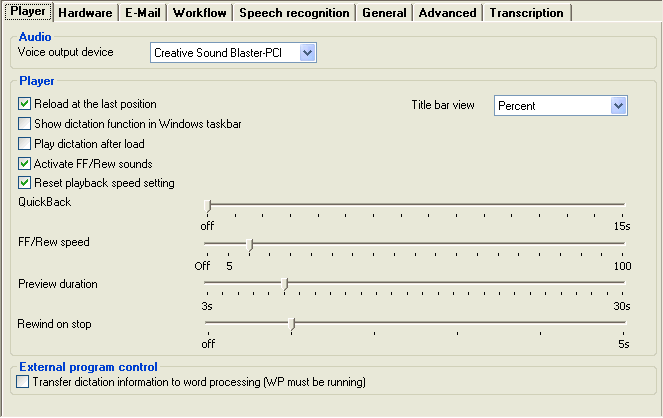
 Click on the above graphic for more information.
Voice output device
All playback devices in Windows System Settings - Control Panel - Sounds & Multimedia/Audio will be listed here. Dictations will be played back in this selected device independently of other Windows sounds, music, error beeps etc. These other system sounds are always played back in the
Windows standard (preferred) device.
Unless you choose a custom setting, Player will select the standard (preferred) Windows Multimedia / Audio device.
Note that Dragon speech-recognized dictations (in multi-user mode) are always played back on the Windows standard device and this setting has no effect.
Reload at last position
If this option is selected, the Player will remember where you are within the current dictation, and the next time this dictation is loaded into the Player it will return immediately to this same position.
Show dictation function in Windows taskbar
When this option is activated an icon will be displayed in the Windows taskbar that indicates to the typist the playback status (Play, Stop, Fast Forward / Rewind) of the Player. This allows the typist to have the Player window in the background while the word-processing program is maximized in the foreground.
Play dictation after load
Activate this option to have dictations automatically playback after loading without needing to click the Play button.
Activate FF/Rew sounds
Activate this option if fast forward / rewind noises of an analog voice recorder are required.
Deactivate this option if the network bandwidth is restricted, e.g. for a WAN, or access is delayed, e.g. for a remote Terminal Server solution.
Reset playback speed setting
This option will always reset the playback speed to 1x for each dictation. If the option is unchecked then the speed you set (slower or faster) will be retained
, even after restarting Player.
Quick Back
If this option is activated, a single, quick press on the Rewind key / pedal / button will cause the dictation to rewind (jump back) a certain number of seconds, replay the last part of the dictation, and return to where it was. The user can set the number of seconds that should be rewound using the slider. Sliders are operated by left-clicking and dragging left or right.
FF / Rew speed
Set the speed of continuous fast forward / rewind using this slider.
When the FF / Rew buttons (or footswitch pedals / keyboard arrow keys) are pressed and held, the FF /Rew speed increases ("dynamic cueing") the longer the button is pressed. The slider here sets the maximum dynamic cueing speed when winding through longer sections of dictation.
If the slider is set to "Off", then a fast, linear operation is selected, without dynamic cueing. This means that the speed is constant and does not increase when cueing for longer periods. Pressing the footswitch for 2 seconds will rewind/FF about 1 minute of dictation. Ideal, if you want the Player to respond in a similar way to your old cassette dictation machine.
Preview duration
This is part of the "IntroScan" function, which allows a preview of dictations in Dictation Overview. The setting must be between 3 and 30 seconds. Default is 8 seconds.
Rewind on Stop
Use this slider to set the number of seconds the dictation will be rewound automatically when playback is stopped. This is to allow the typist to recall where they were in the dictation, or to replay an entire word when accidentally stopped between syllables.
Titlebar view
Here you can set what will be displayed in the Player title-bar and Windows tool-bar. Options are: "percent", "actual position" and "time to end".
Transfer dictation information to word-processing (only for RA-MICRO users in Germany at present) This function opens the RA-MICRO interface to transfer document management information to the external word processor. This option is deactivated by default.