 Options / Hardware
Options / Hardware
Options / Hardware
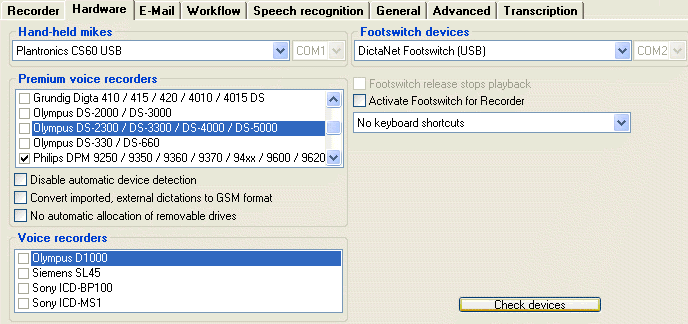
 Click on the above graphic to find out more.
Select the device that you wish to use. The microphones listed are specifically designed for dictation and most have control keys for the recording functions. If your model is not in the list (e.g. for a headset) then select "<Device not listed>" and make sure that the correct audio device is set under voice input device on the Recorder tab. The list includes:
Plantronics CS60 wireless headset
Olympus DR 1000
Olympus DR-1200
Olympus DR 2000 with slide-switch
Olympus DR-2100 with slide-switch
Olympus DR-2200 with slide-switch
Olympus DR-2300 with slide-switch
Olympus DS-330/660
(WinXP only)
Olympus DS-2400
Olympus DS-3300
Olympus DS-3400
Olympus DS-4000
Olympus DS-5000 /5000iD
Grundig Steno.Rec. GDM 756 FX, 800FX through Adapter box - COM port
Grundig ProMic 840 USB
(WinXP only)
Grundig Digta SonicMic / Classic
(WinXP only)
Grundig Digta Sonic Mic II / Classic / international
Grundig Digta Sonic Mic III
Grundig Digta 415 USB
Grundig Digta 420 USB
Grundig Digta CordEx with docking station
Grundig Digta 7 / Premium
Grundig Digta 7 Push
Grundig Digta 7 US international
Philips DPM 9400i (battery recharge NOT supported from USB!)
Philips DPM 9450VC or 9450i (replaces 9400i)
Philips DPM 9450VC US (9450/52 model with alternative layout of Record /FF for US market)
Philips DPM 9500
Philips DPM 9520
Philips DPM 9600
Philips DPM 9620
Philips LFH 5260 Classic
Philips LFH 5260 Classic Citrix - for optimal performance under Citrix Presentation Manager 3
Philips LFH 5262 Classic (with Record on slide-switch)
Philips LFH 5270 Classic Plus
Philips LFH 5272 Classic Plus (with Record on slide-switch)
Philips LFH 5274 Pro (Citrix support is built-in)
Philips LFH 5276 Pro Plus
Philips LFH 5282 Classic (with Record on slide-switch) with barcode scanner
Philips SpeechMike Air LFH 3000, cordless
Philips SpeechMike Air LFH 3010, cordless with international slide-switch
Philips SpeechMike Air LFH 3020, cordless with slide-switch
Philips SpeechMike Pro LFH 3200
Philips SpeechMike Pro LFH 3210 with
international
slide-switch
Philips SpeechMike Pro LFH 3220 with slide-switch
Philips SpeechMike Pro LFH 3300 with barcode reader
Philips SpeechMike Pro LFH 3310 with slide-switch and barcode reader
Philips SpeechMike Pro LFH 3500 better audio, motion control and in black
Philips SpeechMike Pro LFH 3520 better audio, slide-switch, motion control and in black
Philips SpeechMike Pro LFH 3600 with barcode reader
Philips SpeechMike Pro LFH 3610 with slide-switch and barcode reader
Old series USB Philips hand-held mikes
Philips LFH 6174 (for use with a soundcard)
(WinXP only)
Philips LFH 6264 classic (sliding-switch) original
(WinXP only)
Philips LFH 6264 classic Citrix - for optimal performance under Citrix Presentation Manager 3
Philips LFH 6274 Pro USB
(WinXP only)
Philips LFH 6274 Citrix - for optimal performance under Citrix Presentation Manager 3
Devices with the "Citrix" suffix are supported under the older Presentation Manager 3, when the manufacturer's driver is installed on the server and the client. Contact support for details about support of devices under the Citrix 4.5 USB VirtualChannel channel utility and ICA Client.
To test the keys you can click on the button [Check Devices] to start the Hardware test program. Always install the latest driver software for these microphones - it is required to access the control keys and LEDs. Consult your Sales Partner or access the Download page on our Web-site.
If you are using the Philips DPM 96x0/95x0/9400i/9450, Grundig 415/420 or Olympus DS-330/660/3300/4000/5000 then you must check that the voice input/output devices on the Recorder option tab is also set to the required USB audio device.
If you are using the Philips DPM 9450VC or 9450i then you must install the "PocketMemo Download/Configuration" software V2.1 in order to use the control keys.
The DPM 96x0, 9400 and 9450 devices can be dynamically connected during a Recorder session but only when the USB audio device was pre-set using the  star button on the Recorder option tab. When disconnected, the Standard Windows device is used.
Note that the Grundig Steno.Rec microphone can only be used within this Recorder or Grundig applications and not in other, general-purpose audio programs.
The Olympus DS-3300/4000/5000 is either operates as a voice recorder or as a PC-mike. It must therefore change modes internally when switching between Import-View (device is a removable drive) and PC-dictation (device is a USB audio and controlling device). This can take a short while to initialize.
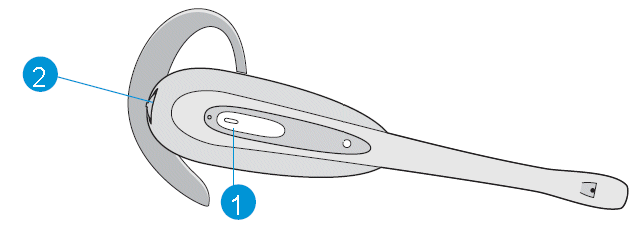
Controls for the Plantronics CS60 (our own driver must be installed) are: middle button  starts/stops recording, the thumb-wheel on the top
  controls QuickBack (right) and Save (left).
Choose the footswitch you want to use from the dropdown list:
DictaNet USB (or Infinity IN-USB-1)
DictaNet COM - serial port (or Infinity IN-DB9)
DictaNet USB waterproof
DictaNet COM waterproof - serial port
DictaNet USB (Infinity IN-USB-1)
Citrix - for optimal performance under Citrix Presentation Manager 3
Infinity USB IN-USB-2
Olympus RS-24/23 (serial COM port or USB) and later 26/25 models respectively
(WinXP only),
Olympus RS-28 (serial COM port or USB)
Olympus RS-31 (serial COM port or USB)
Grundig 536 via Steno.Rec Adapter box - COM port
Grundig Soundbox 820 USB (footswitch and USB audio) with 536 footswitch
(WinXP only),
Grundig Soundbox 830 USB (footswitch and USB audio) with 536 footswitch
Grundig 538 USB footswitch
Grundig 540 USB footswitch
Philips LFH 210/90 (Game-port, serial COM-port or Hama USB-to-Gameport adapter)
Philips LFH 210/90 (or replacement 2210) connected to LFH 6220 USB adapter (footswitch and USB audio)
Philips LFH 210/90 (or replacement 2210) connected to LFH 6220 USB adapter (footswitch and USB audio) for Citrix
Presentation Manager 3
Philips LFH 6212 USB direct cable
Philips LFH 2310 USB
Philips LFH 2330 USB 4 pedal
Philips LFH 2210 (Game-port, serial COM-port or Hama USB-to-Gameport adapter)
For serial options you must also select the COM-port number to which the footswitch is connected.
 The Olympus RS-23 (and later model 25) is only normally available in North America
(WinXP only)
. Please check the key layout assigned using the
[Configure device]
button under
[Check devices
]
.
The Olympus RS-23 (and later model 25) is only normally available in North America
(WinXP only)
. Please check the key layout assigned using the
[Configure device]
button under
[Check devices
]
.
DictaNet waterproof footswitch for medical applications
If you use the DictaNet waterproof model to record dictations, the control is organized as follow:
- Record stop/start [RIGHT pedal 'Record']
- Rewind [hold the MIDDLE pedal 'Rew']
- Play [press the MIDDLE pedal briefly 'Play']
- End dictation (save) [LEFT pedal 'Special']
Philips LFH 2330 4 pedal footswitch
The extra pedal is for Save dictation (move to complete). Press this pedal for 2-3 seconds to save a finished dictation. Layout is as follows:
- Play [lower MIDDLE pedal]
- Rewind [LEFT pedal]
- Fast forward [RIGHT pedal]
- Save dictation (complete) [smaller, upper MIDDLE pedal]
Footswitch release stops playback
When the "Footswitch release stops playback" is activated, a dictation being controlled via a footswitch will only be played as long as as the footswitch pedal is being pressed, and will stop as soon as the pedal is released.
If this option is not activated, the footswitch functions as a simple "press once briefly to START Playback / press again to STOP Playback" switch. After the FF/Rew function is used, the dictation will start to playback automatically but only when this option is NOT activated. This mode is intended to reduce foot strain.
Activate footswitch for Recorder
Normally, the footswitch is only for Player but for scientific/medical, hands-free applications, control of dictation is possible via the footswitch. In this case, no device (<Device not listed>) must be set as hand-held mike and the correct footswitch should be selected. Control is as follows:
Recording start/stop - middle switch.
Rewind - left-hand switch.
Playback start/stop - right-hand switch.
This can be customized for most models using Check Devices-Configure device , or using special entries in the initialization file. Ask Support if you need more help with this.
You can select how the keyboard controls the dictation. There is standard, ClipWriter operation, or no shortcuts. The exact definitions are defined separately for Recorder and Player.
Premium voice recorders can have their dictations (recorded when mobile) imported directly into Dictation Manager, without the need to convert any formats externally. Active devices are listed in the Import view, and can have a Directory path set.
Check any devices from which you want to import files - either directly or from a card-reader or local folder.
The Olympus DS-3000/2000 (WinXP only), 5000, 4000, 3400, 3300, 2400, 2300 and 330/660
(WinXP only)
are automatically detected by the Dictation Manager as soon as they are connected. The Olympus DSS Player software must be installed from CD-ROM for the older DS-2000, 3000, 330and 660 devices.
The Philips 8x00, 9850, 96x0, 95x0, 9400i, 9380, 9370, 9360, 9350 and 9250 are automatically detected by the Dictation Manager as soon as they are connected. The "Philips DPMControl" driver software must be installed. This is available from the Download page on our Web-site.
If you are using the Philips DPM 9450VC or 9450i then you should instead install the "PocketMemo Download and Configuration" software V2.1 in order to support hand-mike operation. Please open the Settings >> Program options and deactivate "Open DPM Download/Configuration after connecting". This will avoid import conflict problems.
The Philips DPM 96x0/95x0/9400i/9450, Grundig 415/420 and Olympus DS-330/660
(WinXP only), DS-3300/4000/5000 devices are multi-functional can also be selected as hand-held mikes and voice input/output devices if required.
The Philips 9370, 9360, 9350, 9250 and 9220 could also be selected as voice input/output devices but have no hand-mike control key functions.
Disable automatic device detection
Normally the external voice recorder is detected automatically when connected and the Import view is opened, but if this disturbs your work then this function can be deactivated. Check the box to disable the function. This is particularly useful for PDAs which are used outside of Recorder, or devices that also have a hand-held PC mike function.
Convert imported, external dictations to GSM format
Dictations (in .DSS or other format) imported, or moved into the workflow using drag & drop, can be converted to the compressed GSM codec format. This is ideal when these dictations are to be routed externally via the Workflow Manager or sent by e-mail.
No automatic allocation of removable drives
The drive letter for an external removable drive (mobile recorder) is normally found and set automatically when it is first attached to the system. This function can be deactivated if this is causing system conflicts. Any lettered or UNC paths can be entered within the Import view.
Dictations from these devices can also be imported into Dictation Manager, but their file formats must be converted to WAV using the manufacturer's software before doing so. Active devices are listed in the Import view, and can have a Directory path set.
This button launches the Hardware Test Program for external control devices such as footswitches and dictation microphones.
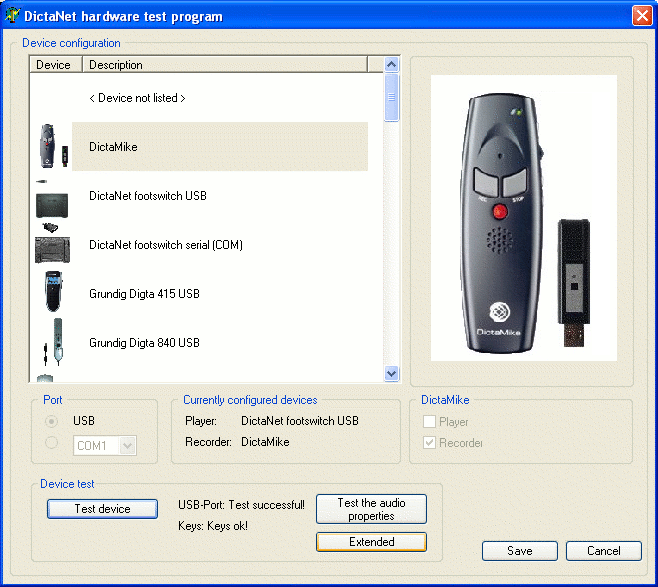
Select the device that you have (does it match the picture shown?) and click on [Test device]. The device is initialized and then you can press the various keys to check their operation. Stop the test with [Cancel test] and save your selected device with [Save].
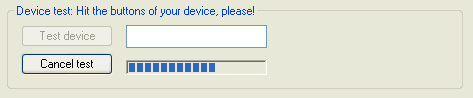
To quit and return to Recorder or Player, click on [Cancel] or the top-right window close function  .
.
To set DictaMike/Transceiver pairing, use the [Extended] button for the pairing function.
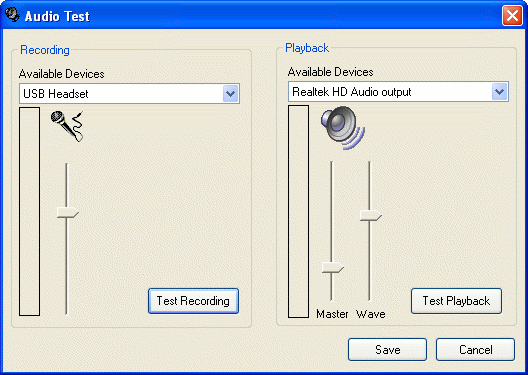
After the test for hand-held mikes is successfully completed, a [Test the audio properties] button will appear where you can select and test the audio devices for recording level and playback. The input and output audio levels can be saved for each device and they will be reloaded when starting the Recorder.
Please note that when Check devices is running, many Recorder/Player functions are blocked and will not work.
There is a [Configure device] button to assign functions to individual footswitch keys. Please note that each type of footswitch has a very different layout.
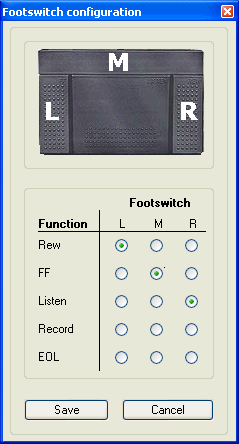
This can also be set in the initialization file under the [DN2000] section to re-assign pedals:
FSPLAY= (normal Play pedal, as indicated on the device)
FSFF= (normal Fast forward pedal)
FSREW= (normal Rewind pedal).
Function values (right of the equals sign) are:)
FSPLAY or FSFF or FSREW , and for Recorder FSREC or FSINS (Insert) or FSEOL
Example, if you want to make the left pedal Rewind, middle Play and right Fast foward for the "Ownbrand" USB (Infinity IN-USB-1) footswitch, then enter these lines in the initialization file:
FSPLAY=FSPLAY (middle)
FSFF=FSREW (left)
FSREW=FSFF (right)