 mail button.
Single or multiple dictations that have been selected in the Dictation Overview can be sent as e-mail attachments. Dictations that have been sent in this way will have a loudspeaker-with-envelope symbol in Column A and will be blocked to other users.
You can send a new dictation by e-mail directly from the Recorder before saving it. Simply click the mail button.
Dictations which have been received can be loaded into the Dictation Manager either automatically or manually. A distinction is made between received dictations and Answers.
 Both audio files and speech-recognized text files can be sent from the Recorder. The Player can normally only send the text files.
The Inbox at the E-mail Provider must have a capacity of at least 10MB.
 Under the e-mail program and encryption options can be selected. If a MAPI compatible e-mail program is selected, the dictation will be compressed, encrypted and sent via the Outbox of the e-mail program. If the option via SMTP e-mail transfer is selected, the dictation will be sent directly from the integrated Send Mail Window.
E-mailed dictations are in a compressed audio format, and thus can no longer be sent to speech recognition.
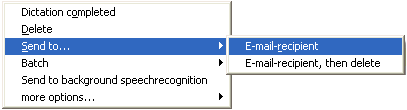
To send a dictation by e-mail from the Dictation Manager, first select one or more dictations, then right-click on a selected dictation and select the menu option "Send to... E-mail recipient".
Sending via Microsoft Office Outlook / Outlook Express / Windows Mail
If Microsoft Office Outlook, Outlook Express, Windows Mail or another MAPI-compatible e-mail program has been installed on your computer, it will be automatically opened to e-mail a dictation. Dictations will be compressed, encrypted (if that option has been selected) and sent as an e-mail attachment. If the dictation has both an audio file and a speech-recognized text, both will be sent as attachments.
If e-mail details have been entered under they will automatically be used when sending e-mails. If not, you will be asked to supply them when an e-mail is sent.
The subject heading will be automatically composed as follows: the text "Dictation Mail from" + e-mail address of originator + file ID number (cookie) of the dictation.
Changing this subject heading will make it impossible for the Dictation Manager to automatically read the e-mail.
The Player can only send text files as e-mail attachments, not audio files. The "E-Mail"
menu option will grayed out if no text file exists for the dictation.
If using the SMTP option, enter a "To" address in the SendMail Window, enter any additional text in the "Text" field, and click .
After a dictation has been sent, it will be blocked (as shown by the altered row color) and a loudspeaker-with-envelope symbol  will appear in Column "A". The original dictation will remain in the folder in which it was saved, waiting for a transcription to be returned. It can be manually deleted or unblocked for further processing locally. This can be done by right-clicking on the selected dictation and selecting the appropriate menu option.
To make the "Originator" column visible, right-click on the column headings row in Dictation Overview and select the menu option "Column visible / invisible" and then select "ORIGINATOR".
E-mailed dictations are logged in the DNMAILS.TXT file in the folder {local program folder}\Dictation . This file can be opened via
Warning: dictations that are waiting to be sent in the Outbox of your e-mail program will be marked as sent in Dictation Overview. You must be online for these mails to be sent. See the help files of your e-mail program for more information.
Warning: there is no guarantee from DictaNet Software that dictations sent by e-mail arrive at your intended destination. Please prove your e-mail reliability and security before relying on this methodology. And remember, e-mail systems do not understand deadlines!
Received dictations can be manually or automatically loaded into Dictation Manager. A distinction is made between received dictations and Answers.
Manually loading a received dictation in Dictation Manager
Open the e-mail using your MAPI-compatible e-mail program, e.g. Outlook. Drag and drop the attached dictation into Dictation Manager. This can most easily be done by opening both programs simultaneously in two windows with the e-mail program window in the foreground and Dictation Manager in the background.
The dictation information (Finish by, Author, File no. etc) will only be loaded into Dictation Manager if the e-mail program is MAPI-compatible.
Automatically loading a received dictation in Dictation Manager
Right-click on the folder into which the e-mailed dictation should be imported and select the menu option "Download dictation e-mails to current folder". Any unread e-mails in the Inbox of your e-mail program with a DictaNet-generated Subject heading will be imported. Any such e-mails which have already been read, but are intended to be imported into the Dictation Manager, should first be marked as unread (see your e-mail program Help).
During the import process a log file DNMAILD.TXT will be created in the folder {local program folder}\Dictation. When the process has finished the log file will be displayed on the screen, and can be printed if necessary. The file can be accessed at any time via .
Answers
Normally files are imported into the currently active folder, but received e-mailed dictation transcriptions, sent from Player in another office, (known as "Answers") are treated differently, and will be imported into the the same dictation folder from which they were originally sent. The original dictations that were sent by e-mail (indicated by the symbol ) will be unblocked. The written document in the Answer e-mail (.doc, .docx, .rtf or .txt) will be automatically linked to the audio dictation and shown as a sheet-of-paper symbol  in the 'D' column.
If the Answer mail contains an audio file, this will be indicated in Column "A" by the loudspeaker symbol  . If the original dictation had been set to "completed" before being sent, it will now be moved back into the "unfinished dictations" folder, and will be replaced in the "completed dictations" folder by the audio file in the Answer mail.
Warning: more recent files will overwrite older files. Thus if a document is corrected on an external machine and then sent back to its originator, when this file is imported it will overwrite the older file on the originator's machine (assuming the older file is still in existence).
E-mailing via SMTP E-mail accounts
The selected dictation will be automatically compressed, optionally encrypted, and sent as an e-mail attachment. If the dictation has both an audio file and a speech-recognized text file, both files will be attached. The e-mail is sent via the Send Mail window (below):
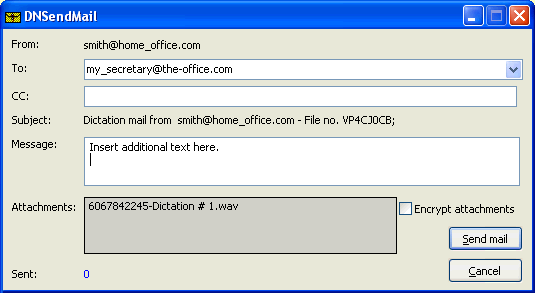
Enter recipient data into the "To" field, optionally enter comments into the "Text" field and check the box if you require the attachments to be encrypted. Click to finish.
 You must have Internet access and be online for this to function.
The mail server of the receiving address must be able to authorize the transfer or else the e-mail will not be sent and an error message will be given.
Receiving from SMTP E-Mail accounts
This must be done manually, and will not import dictation details. Start your e-mail program, find any dictation e-mails in the Inbox and save their attachments in an appropriate folder. The recommended folder is on the Server, e.g. Network_drive:\DictaNet\Dictate\Pool *, so that the dictations are immediately available to all Workflow users.
* This path can be found in the top-most line in bold text of the Dictation Manager.
If files are saved in a different folder (e.g. Windows Desktop), then the dictations must be imported into Dictation Manager.