 Options / E-Mail (discontinued)
Options / E-Mail (discontinued)
Options / E-Mail (discontinued)
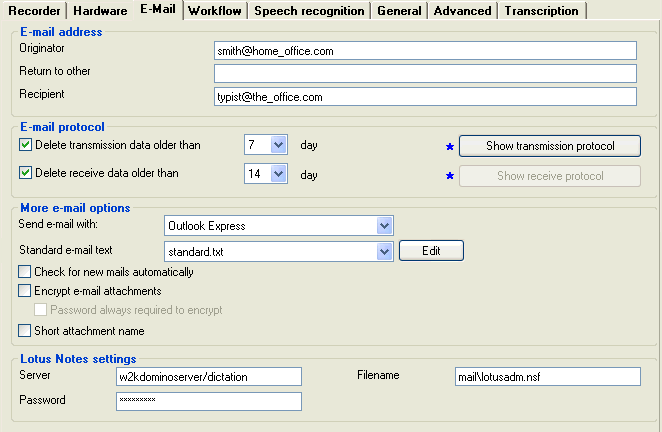
 Click on the above graphic for more information.
The blue star
Click on the above graphic for more information.
The blue star  indicates options that are universal settings. Once set during installation
they will apply to all connected computers.
indicates options that are universal settings. Once set during installation
they will apply to all connected computers.Originator
The e-mail address of the person who sends the e-mails must be entered
here. This entry will be displayed in the "ORIGINATOR/ID" column of Dictation Manager
(this column can be made visible / invisible).
Return to
The e-mail address of the person to whom any e-mail
replies (normally transcribed texts) should be sent can be entered here. Only
enter an address if it is different to the Originator e-mail address.
Make sure
that the e-mail address entered here is one whose Inbox is checked regularly.
Recipient
Enter the e-mail address here of the person who will most often receive
dictation
e-mails - typically the typist for your office. This e-mail address will be automatically entered into the "To"
field of the e-mail itself.
Delete transmission
data older than
Every time an e-mail is sent from the Dictation
Manager, an
entry is made in a log file. To limit the growth of this file, you can set here
the number of days for which this log information should be kept.
To activate this option, put a check in the box and choose a number of days
between 1 and 30. Log entries older than this will be
automatically deleted.
Show transmission
protocol
Clicking this button will open the log file (described above). It may be edited,
printed, searched, or saved (under a different name / in a different folder)
as a backup.
Since the
data in this log file can be changed in any text editor, the DictaNet software
manufacturer and suppliers cannot accept liability for the content of the
file.
This button
is only active if dictations have been sent by e-mail from within the
Dictation Manager.
Delete
receive data older than
The receive (download) protocol is a separate log file that
lists every dictation that is imported into the Dictation Manager from
e-mail. To limit the growth of
this file, you can can set here the number of days
for which this log information should be kept.
To activate this option, put a check in the box and choose a number of days
between 1 and 30. Log entries older than this will be
automatically deleted.
Show receive protocol Clicking this button will open the receive protocol log file
(described above). It may be edited, printed, searched, or saved (under a different
name / in a different folder) as a backup.
Since the
data in this log file can be changed in any text editor, the DictaNet software
manufacturer and suppliers cannot accept liability for the content of the
file.
This button
is only active if dictations have been received by e-mail into the
Dictation Manager.
Mail
attachments imported through drag and drop are NOT recorded in the receive protocol.
Send e-mail with
Here you can set the e-mail program that will be used to send and receive
dictations. The choices are:
Microsoft Office Outlook
For sending/receiving e-mailed dictations via Microsoft Office Outlook.
Via SMTP E-mail transfer
For sending/receiving e-mailed dictations via an Internet Service Provider and mail server, such as
hotmail.com, aol.com or freeola.com, yahoo etc. The recipient's and the
sender's mail server (obtained from the domain-name) must give authorization to the mail sent from DictaNet. Receiving dictations is performed via any Internet Browser and then using
a "Save as..." function for the dictation attachments.
Microsoft Office Outlook/ Outlook Express/
MAPI-compatible
For sending/receiving e-mailed dictations via MAPI-compatible programs, e.g.
Microsoft Office Outlook, Outlook Express or other programs with a standard MAPI
interface.
The program's
help files should indicate if it is MAPI-compatible.
Please
set the standard mail program in Internet Options on the Windows Control
Panel, if more than one mail program (e.g. Express and Office
Outlook) is installed on your computer.
The standard text provided when a dictation is sent by email can be changed to suit your office. Just click on the [Edit] button and use the default Windows Editor to modify the text and save (*.txt). Different versions of the text can be edited, saved as other file-names and then selected from the list.
E-mail dispatch with Lotus Notes
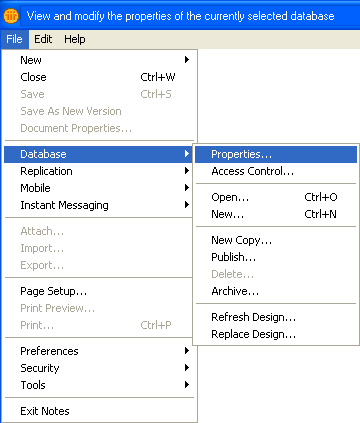
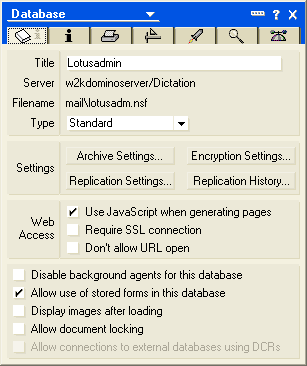
If your office uses Notes version 6 or above for e-mail then this can be integrated into the Workflow. Select "Lotus Notes" under the "Send e-mail with" option and then enter the correct server and password information for Notes. These can be found in Notes under File - Database - Properties, or provided by your System Administrator.
Check for new mails automatically
This will check every 5 minutes for unread emails with attached dictations in the selected e-mail program and allow import when no dictation is currently loaded.
Encrypt
e-mail attachments
E-mail attachments can be encrypted using the 448-bit Blowfish algorithm.
This ensures that only the intended recipient with DictaNet software can
access the data.
Encrypted
dictations will be automatically decrypted by DictaNet when received. All
DictaNet users can decrypt any DictaNet-encrypted dictation, unless the
specific password method is used.
Text files
are also encrypted and must be imported into Dictation Manager for decryption.
Until this is done they are not readable.If the "Password always required to encrypt" option is activated, then each mail dispatch will ask for this password and use it to encrypt the attachments. The recipient MUST KNOW THE SAME PASSWORD to decrypt the mail. No other DictaNet users can access the data. If "Default password" is used, then a universal password-cipher is used which is automatically applied to decrypt the mail attachments at the receiving end without any entry from the user.
Short attachment name
format
Normally, all attachments sent from the Dictation Manager are named identically and the
dictation details are encoded within these files. In order to send
easily identifiable mail
to workflow systems other than DictaNet, the dictation attachments can be
named with a different convention. This comprises of the author's
initials, originator e-mail address and a unique 8-digit cookie number. The format is SDM&-[author]-[email_address]-[cookie_number].wav
. The dot in the e-mail address will be converted to !! to avoid Windows
filename problems.
If the Answer e-mail with written document is returned with exactly the same filename format, e.g. SDM&-[author]-[email_address]-[cookie_number].doc , and the details are identical, then this can be matched automatically to the original dictation sent by e-mail.