 Dictation
window
(DictaPad)
Dictation
window
(DictaPad)
Dictation
window
(DictaPad)
Dictation
window
(DictaPad)
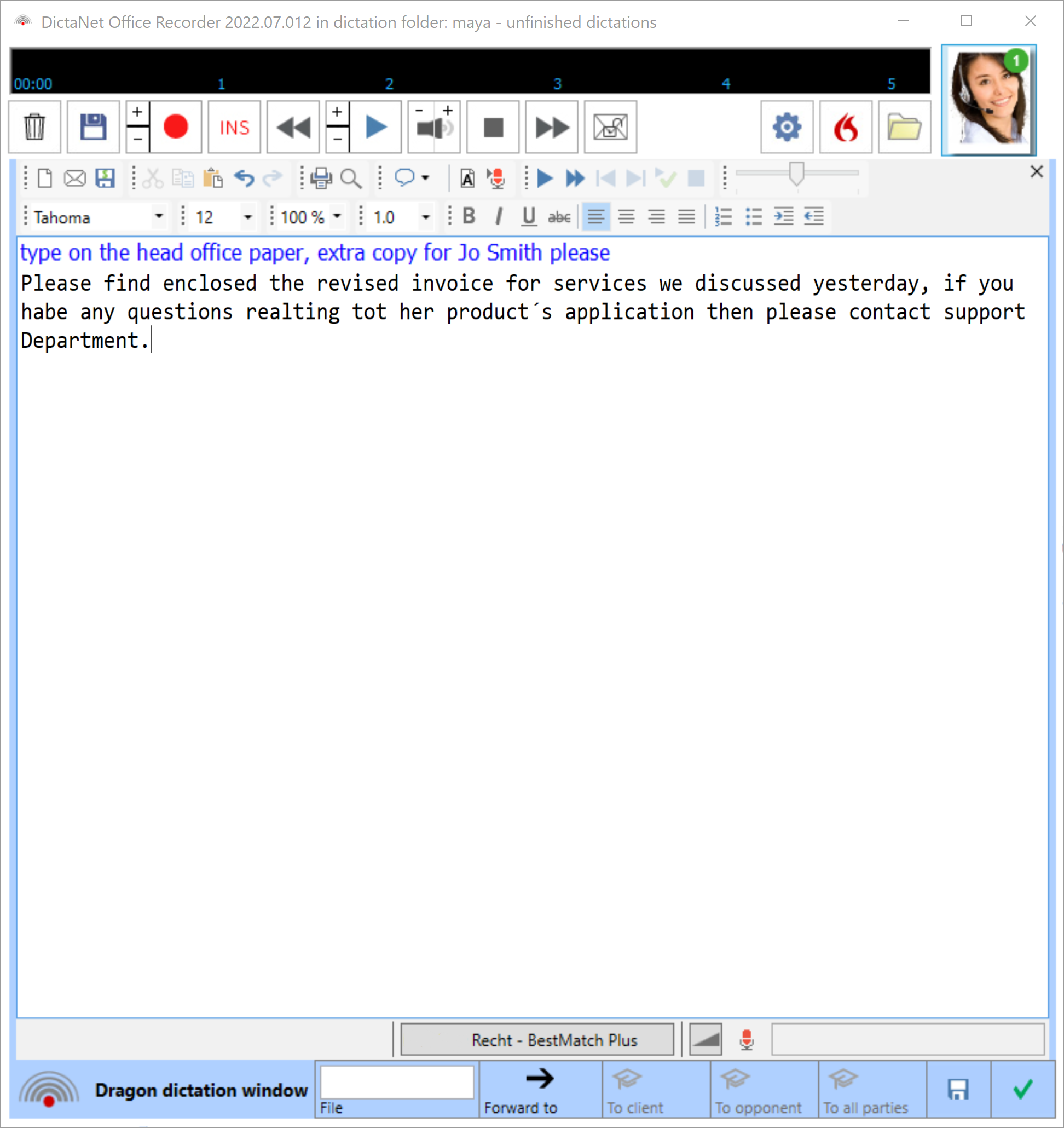
Once the speech-recognition software Dragon NaturallySpeaking has been installed and activated via , clicking on the Speech Bubble symbol will open this dictation window, DictaPad.
 Click on the above graphic to find out more.
Dragon speech-recognition software has its own help files;
in the Command menu  select "
Speech recognition options
" and the click on
Help
and then
Show to see the topics.
select "
Speech recognition options
" and the click on
Help
and then
Show to see the topics.
Dictations can normally be re-loaded after saving (with Save  ) and further edited at a later date, either by adding typed corrections, or dictating with speech recognition.
Clicking again on the Speech Bubble will turn speech recognition off and allow audio-only dictations. The Position Indicator (top left) will then show
00:00
as minutes and seconds.
The following information applies to Dragon version 8 upwards. Previous versions are not supported with Workflow Recorder version 8.00 or above.
Correcting speech-recognized text
Use the keyboard to correct any speech-recognition errors as you would with a typical word processor. In addition, the following buttons are available:
| Button | Function |
 |
Save this dictation and start a new one |
 |
Copy the selected text |
 |
Cut the selected text |
 |
Paste the text from clipboard |
 |
Undo last editing action |
 |
Search for a word |
The command menu to the right of the small speech-bubble symbol is for advanced Dragon commands and dictation functions which you can use in additional to regular dictation.
Any text typed in from the keyboard is marked in blue.
Delegated correction and Roaming Users
This must be set up beforehand in the Dragon Administrative Options. Typists can then use the Correction function to correct the text and improve the author's speech recognition profile. The corresponding Dragon profile (user name) is always shown at the bottom of the window.
Text in green indicates instructions for the typist from the author and should not be transcribed.
Text can be formatted using the mouse. First select the text to be formatted, then use the following buttons:
| Button / Dropdown list | Function |
 |
Select font |
 |
Select font size |
| 1.0 / 1.5 / 2.0 | Line spacing |
| B | bold |
| I | italics |
 |
underline. |
 |
left justify |
 |
center |
 |
right justify |
 |
Block-aligned to fit the whole line proportionally |
 |
Paragraph formatting |
The default font-style and size can be set on the Options / Speech Recognition tab. There is also a zoom function for the size of the text displayed is percent  .
.
Playing back speech-recognized text
Either click on the blue, playback control keys or use your hand-held mike to play, rewind or pause the audio. The yellow arrow indicates which word corresponds to the audio you are hearing.
| Button | Function |
 |
Start playback from the current cursor position |
 |
Playback faster (playback must already be started to use this button) |
 |
Playback the last phrase. Click again to jump back one phrase |
 |
Playback the next phase. Click again to jump forward one phrase |
 |
Playback the backup copy from the start, but without the yellow arrow |
 |
Stop |
You can click anywhere in the text to change the cursor position. A block of text can also be selected with the mouse and then played back.
A right mouse-click on a marked block will also show the functions for playback, cut/paste, correction etc.
The playback volume can be changed with the  button.
Click on the  symbol to print to the default printer.