Dictation Directory
Dictation Directory
Dictation Directory
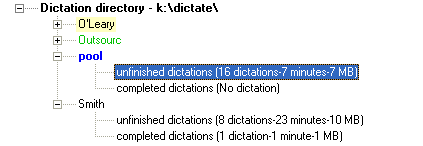
The Dictation Directory takes the form of a simple tree structure. It shows the folders in which audio files can be saved. The default drive is the one which was set as "shared network dictation folder" when the software was installed, and the audio files will be saved on the Network in a sub-folder e.g. ..\dictate\pool. The currently active folder is marked in bold and blue . Any monitored folders are in green and the default folder (if set) is highlighted in beige.
The details view displays the number of dictations in every folder, the length of these dictations in minutes and the hard drive space they take up. This option can be selected by right-clicking on the Dictation Directory and selecting the menu option "Options/ Show details".

This setting is universal for all folders, and so the right-click may be done on any of the folders displayed with the same results. The option can also be deactivated for all users under .
Right-click on the top-most line of the Dictation Directory (in the example in the graphic below it is the line: Dictation directory - K:\Dictate \ ) and select the menu option "Dictation folder.../ Create".

Type in the name of the new folder and finish by pressing the [Enter] key.
The name can be up to 8 alphanumeric characters long and must not contain the following characters:
( ) \ / : * ? " < > |
 For data security reasons we recommend the use of the underscore character ( _ ) instead of a space in folder names.
If created in Windows Explorer, the folder can have a longer name but please do not enter special characters, a comma, space bar or start with a numeral.
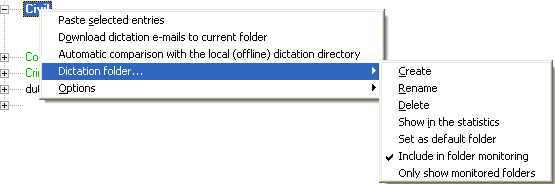
There are several functions specific to the selected folder, available through a right-click on the folder name:
Right-click on a folder in the Dictation Directory and select the menu option "Dictation folder.../ Rename".
Enter the new name and finish by pressing the [Enter] key.
For data security reasons we recommend the use of the underscore character ( _ ) instead of a space in folder names.
For technical reasons, if the name of the folder begins with a number, the letter "D" will be inserted automatically at the beginning of the folder name.
Right-click on a folder in the Dictation Directory and select the menu option "Dictation folder.../ Delete". Confirm the delete command when prompted.
F
olders containing unfinished dictations cannot be deleted.
To select a folder for display in Statistics, right-click on that folder and select the menu option "Dictation folder.../ Show in the statistics". A check symbol will now appear next to this menu option.
If there are more folders in the Dictation Directory than can be shown on the screen, a scroll-bar will appear on the right of the Dictation Directory, and you will be able to scroll up and down to display the desired folders.
Show only monitored folders
The dictation overview can be set in Player to only show folders that are monitored. This is useful for large organizations which have many dictation folders and wish to restrict the number of folders which a particular typist can see within the Workflow.
Please note that the Pool is always shown in Player for security reasons.
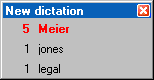
Please note that the notification of new dictations is only shown, once the current dictation is unloaded.
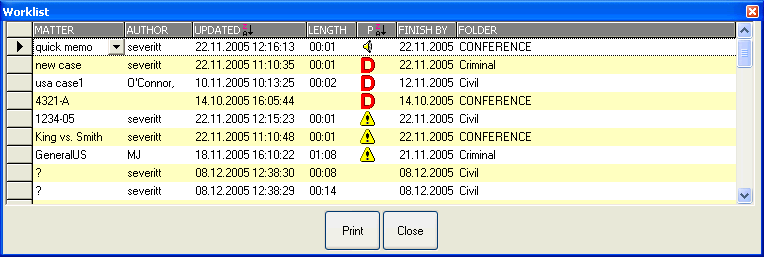
The worklist is a list of unfinished dictations that are assigned to a particular typist, i.e. from all monitored folders and the current folder. A right-click on the Dictation Directory (the top-line in bold text) provides the function to display (and print) this list. This can also be displayed automatically on starting the Player when the " Show dictation worklist when program starts " option is enabled on the Options / Advanced tab.