 Options / Workflow
Options / Workflow
Options / Workflow
 Click on the above graphic for more information.
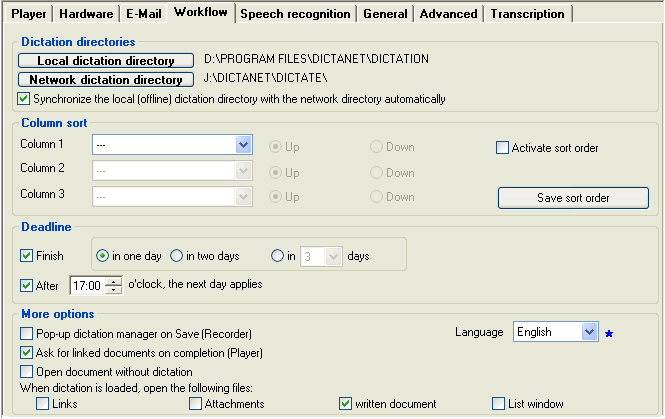
Local Dictation Directory
Here you can select the local folder that will be used to save dictations and backups. This will also be used if the network is not connected, for example, when using a laptop away from the office.
To select a folder, click on the button, browse to the folder (sub-folders can be opened by left-clicking on the plus sign) and select it with a double-click. A "Pool" will always be automatically created in this directory, therefore please do not include "Pool" when selecting it.
Network Dictation Directory
If multiple users are to have access to the dictations, a network folder must be used. If a network folder is not available, or if in Laptop Mode, another local folder can be entered here.
To select a folder, click on the button, browse to the folder (sub-folders can be opened by left-clicking on the plus sign) and select it with a double-click. A "Pool" will always be automatically created in this directory, therefore please do not include "Pool" when selecting it. UNC paths, without a drive mapped to a letter, can be selected under "My Network places" or typed in previously during the Setup program.
This can be set dynamically without needing to restart the program. This is ideal if you have several dictation directories on various network drives.
Both dictation directories can be viewed simultanously using laptop mode.
Synchronize the local (offline) dictation directory with the network dictation directory automatically This option is ideal if you work away from the office, or have network connection problems. If the network is not available, then dictations are always saved in the local dictation directory, typically in the Pool folder. When this option is checked, a dialog will appear when Recorder (or Player) is started and the network is once again online.
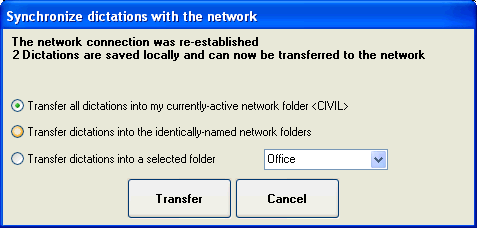
This function can also be performed at any time with a right-click on the dictation directory.
Column 1/2/3 Here you can set a multiple sort option for the dictations listed in Dictation Overview. The sorting will be done automatically for you when activated. Select columns from the dropdown lists, and then select a sort direction using the radio buttons
 .
.
The dictations will first be sorted according to the Column 1 criterion; dictations that are identical according to this criterion will be further sorted by Column 2 criterion, and then by Column 3.
Up/Down Use these radio buttons to enter the sort direction.
Activate
Sort Order
Activating this option will give multiple sorting criteria priority over single column sorting in the Dictation Overview. When deactivated, you can do single column sorting by clicking on the column headings in Dictation Overview.
The option can also be set directly in Dictation Overview: right click on the column headings and select the menu option "Activate Sort Order".
Save Sort Order The settings for multiple column sorting must be saved to permit switching between multiple- and single-column sorting.
Finish
This is the default setting for deadlines when saving dictations, this is normally the same day the dictations were created. To change, check the checkbox and select an alternative deadline for X days using the radio buttons
.
The deadline will be automatically adjusted so it does not fall on a weekend. Public holidays are NOT recognized.
After ... o'clock, the next day applies
As an example, if this option is set to 16:00, Any dictations saved after this time will have the next working day shown as the deadline in Dictation Overview. The blue star  indicates that it can be saved centrally for all users in the network.
Pop-up Dictation Manager on Save (Recorder)
If this option is activated, the Dictation Manager will always be opened when a dictation is saved in Recorder with Save/EOL. When activated, this allows the user to add more details such as "Author" or "customized Col 1" to a dictation via the Dictation Overview, or even to send the dictation for background speech recognition.
Ask for linked documents on completion (Player)
If this option is activated, when a dictation is marked as completed (click Save) in Player, you will be prompted for instructions on which document(s) should be linked to that dictation. This is ideal for the typist to manage the written document when it is completely typed-up.
Open document without dictation
Normally, any documents indicated by the "D" column are opened with the audio dictation. If this option is active, only the document is opened and not the dictation. This is ideal for authors wanting to perform a quick check of the transcription.
Open all files when selected dictation is loaded
Here you can set which related documents will be automatically opened when a dictation is loaded.
Alternatively, when the "List Window" option is selected, it will cause a window to open, from which related documents can be selected and opened.
Language
Select the language for the program's graphic interface (German or English) for Player, Recorder and Workflow Manager. The program must be closed and re-started for this setting to take effect.