Options / Admin
Options / Admin
Options / Admin
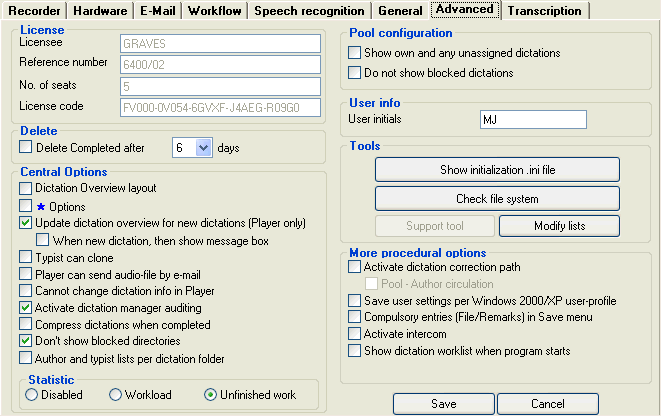
Many options set on this screen are "central parameters" that will apply to all users on the network and can change the entire Workflow operation. Please read this information carefully before changing any options.
To set these options a valid PIN (Personal Identification Number) must be entered, otherwise the options will be grayed-out and cannot be altered (for security reasons). Take care not to lose your PIN. Our Support-Hotline can help if the correct PIN is unknown in your office.
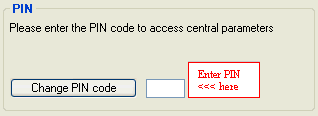
 Remember to click the
Save
button when you have changed any option on the Advanced tab.
Remember to click the
Save
button when you have changed any option on the Advanced tab.
The first time the user opens the Options / Advanced tab, the program will display your default PIN.
Take care not to lose your PIN. Our Hotline-Support can help if the correct PIN is unknown in your office.
The PIN can be changed by clicking the button .
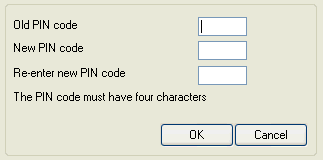
Enter the old PIN into the first text field, and the new PIN into the following two. Confirm with to change the PIN. You may now change the central parameter options.
Click on the above graphic for more information.
The license number shown in the above graphic is for illustrative purposes only - it cannot be used as a real license number!
This data can only be viewed here but not altered.
The license consists of the following:
 Licensee name,
Reference number,
Number of licensed seats
License code
This data can only be entered using the installation program, DNSetup.exe. This is located in the shared network setup folder.
The entered details must exactly match those sent from your DictaNet Sales-Partner. In case of problems, contact Support.
Without a valid License, Recorder or Player will not start.
Completed erased after ... days
To free up hard drive space, the user can activate this central function and set the number of days a completed dictation should be stored before being automatically deleted. This will affect all dictations centrally stored on the server.
Choose a value between 1 and 90 days.
Layout of Dictation Overview
This option sets the layout of Dictation Overview for all computers using the same dictation directory. The layout settings include:
Font size and color
Row width, height
Background colors
Order & visibility of columns in Dictation Overview.
The layout should be decided on the first PC, then activate the Option and confirm with the Save button. The central setting is applied as a template to all following installations and any computer which has not yet had its layout changed. It can be overridden locally on any individual computer.
 If you want to update this template later, do so on any PC, set the "Dictation Overview layout" Option and confirm with Save. On the other PCs, delete the layout.grx file locally from C:\Program Files\DictaNet\Dictation (or \Documents and Settings\yourname\Application Data if the "Save user settings per Windows 2000/XP user-profile" option is set) and restart Player/Recorder. It will take the central layout from the shared network dictation directory.
The Column captions (headings) for 'File', 'Col 1', 'Col 2', and 'Ready by' are NOT part of this layout. They can be set on the first PC and then these will be applied to further installations. Users can change these headings just for their own PC later.
 Parameters
If the blue star
Parameters
option is activated, then the settings in the table below will be stored centrally and used as a template for further installations:
| Tab | Option |
| Workflow | Language |
|
Show transmission protocol / Show download protocol |
These options are marked with a on the tabs.
Update dictation overview for new dictations (Player only)
By default, the Player will be brought to the foreground in Windows and the overview updated, whenever a new dictation has been saved in the currently active folder. This setting turns this notification on/off.
If a typist works in various dictation folders to type-up incoming, new dictations, then this function is less useful. Try using dictation folder monitoring or use the Graphic view in Player to observe which folders are filling up with new dictations.
When new dictation, then show message box
This option, when activated, shows the typist a message box when a new dictation is saved into the currently active folder or any monitored folders. In Addition, a "New Mail Notification" sound (as defined in the
Windows Control Panel - Sound and audio devices
) is heard in the standard Windows audio device.
If a dictation is already loaded, then the pop-up message box will only appear when that dictation is closed.
Typist can clone
This central setting allows typists to clone dictations. The user may want to activate this option if a dictation is to be worked on by multiple people. Consider using the more effective Split dictation function instead.
Player can send audio-file by e-mail
Normally the Player is limited to sending text documents, or speech-recognized text (.rtf) with accompanying audio (.wav) by e-mail. If this option is activated, Player is permitted to send audio files exactly as the Recorder can. This allows typists to manage the audio dictations, sending them to external office services by e-mail, without needing the intervention of the busy author.
Statistics display
This selects the Statistics/Graphic view for all users. "Unfinished work" only shows unfinished dictation folders, "Workload" shows both completed and unfinished dictation folders (i.e. the same as in the Recorder) and "Disabled" means that the statistics are not shown at all.
Cannot change dictation info in Player Use this setting to prevent typists altering important dictation information (e.g. File number, Ready by, Author) or deleting unfinished dictations in the Player.
Activate Dictation Manager auditing
Use this option to log Workflow activity - such as users of, and changes made to dictations. The log can be analyzed later in Workflow Manager.
Compress dictations when completed
With this option activated, dictations will be compressed (converted to a compressed audio format) before being saved in the "completed dictations" folder. They will remain compressed even if their status is later changed to "unfinished". Note that this will prevent the completed dictations from being sent to background speech recognition.
Don't show blocked folders
If a dictation folder is assigned access rights according to the log-on user-name using the network security, then the Dictation Manager will normally only show folders for which this user has write permission. When this option is deactivated, then all folders will be shown regardless of any permission the system administrator has assigned. The Dictation Manager still adheres to these permissions and will not allow dictations in protected folders to be processed.
Author and typist lists per dictation folder
Normally the lists of author and typist initials are for the complete dictation directory.
This option enables separate drop-down lists for each individual dictation folder. This allows a closer association of users with their relevant folders in larger installations.
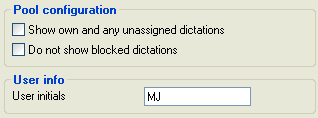
To clearly identify the creator or transcriber of a dictation, enter User initials here before you start serious work with the Dictation Manager. These initials are essential to use the Evaluation function in the Workflow Manager. By default, the Windows logon username is used during the first start of Recorder/Player to create the user initials.
The User initials are completely independent of the dictation folder names.
Here filter options can be set for the user's Dictation Overview. Please use with care to avoid hiding unfinished dictations.
The option "Show own or any unassigned dictations" will only show dictations that are currently allocated to your User initials, or have no current author/typist initials entered. The logic is as follows:
The dictations are shown if:
- either Author or Typist has the corresponding initials, regardless if Player or Recorder is being used
- the Author field is empty (i.e. unassigned) and Recorder is started
- the Typist field is empty (i.e. unassigned) and Player is started
Conversely, dictations are not shown if:
- neither the Author nor the Typist initials match those entered on the Advanced tab
The option can be used so that a typist working in a common pool folder only sees dictations that are intended for them.
The option "Do not show blocked dictations" will not show any blocked (in progress) dictations.
These options are only visible after entering a valid PIN.
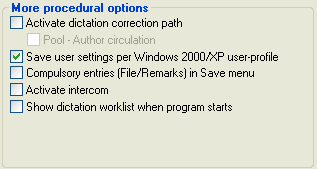
Save user settings per Windows 2000/XP user-profile
The settings on all option tabs can be saved for each individual Windows user with their own login name who is using this computer. These is ideal when one workstation is used by many typists who have their own preferences for FF/Rew speed, volume, dictation folder etc. The main path settings remain the same for all users and are stored in the initialization file in the Windows folder but other general settings are stored in a copy of the file under \Documents and Settings\Username\Application Data. The Show initialization .ini file button will show the individual file when this option is activated.
Always restart Recorder/Player, immediately after setting this option.
Do not use this option on Terminal Server/Citrix clients.
Compulsory entries in
Save
menu
The File reference (matter, case patient etc) and Remarks entries can be made compulsory before the dictation is allowed to be saved to the network. The compulsory fields are then highlighted in yellow. The dictation can be discarded without entering any data.
Activate intercom
The intercom function allows authors to talk to any typist without using the telephone or recording a "urgent message" dictation. Click on the symbol left from the speech-bubble to set up and use this feature. Users can be organized by an administrator into groups.

Show dictation worklist when program starts
The worklist is a list of unfinished dictations that are assigned to a particular typist, i.e. from all monitored folders and the current folder. This can be displayed (and printed) on starting the Player when this option is enabled. It can also be shown later with a right-click on the dictation directory.
Activate correction path for dictations
Correction path is a special mode intended for companies where the completion and approval within DictaNet Workflow is done by the person giving dictation and not the typist.
The author dictates and saves in the normal way, typically in the Pool. The typist opens the dictation in Player and it is immediately given the typist's initials (in the "Typist" column). But when closed with Save after being typed-up, the dictations are returned to their author for approval, or possible re-work. The status of the dictation is automatically shown in Column "S" of the Dictation Overview with the following symbols:
 indicates that the typist must make further corrections
 indicates that the author of the dictation is working on the dictation.
The Status column is not normally visible. You can enable it with a right mouse click on the column heading. The same applies to the Typist column.
We recommend that the typist sets a link to the written document for the dictation so that the author can immediately load the transcription (written document) from Dictation Overview.
The status of the dictation is changed when the Save (complete) button is clicked in the Player.
The typist will be presented with these three options:

The button assigns the dictation back to its author for inspection or further dictation, as indicated by the symbol . The Remarks field allows information for the author to be entered.
The button does not change the dictation status, and unblocks the dictation in Dictation View and keeps it in the same folder.
The button removes the current typist's initials from the dictation, and the dictation is now available in the folder for any typist to work on.
The status of the dictation is also set when the Save button is clicked after re-loading in the Recorder. The following three buttons will appear:

The button sends the dictation back to the typist for correction. This change in status is indicated by the symbol . The Remarks field allows instructions for the typist to be entered.
The button does not change the dictation status, but saves any changes that have been made.
The button marks the dictation as correct and completed and moves it to the "completed dictations" folder. The written document is then ready to be printed and signed.
The whole process can be repeated so that a dictation can "ping-ping" several times between author and typist.
Pool - Author circulation
This sub-option can be used when all dictations are to be saved in the Pool and the author wants to have a good overview of how many of his/her dictation transcriptions need to be be reviewed and approved. The author's personal folder must have exactly the same name as his/her initials and then all new dictations will be saved automatically in the Pool.
Dictations are loaded from the Pool and then processed by any typist, who then saves it with Save and selects "Back to control" The dictation is then automatically put into the folder belonging to the author, i.e. the folder with his/her initials. For example, if the author initials are JH, then the dictation is sent for correction and approval to the dictation folder \JH. If this dictation folder does not already exist, then Player will create it automatically. This allows any typist to type-up dictations from the Pool and not worry about which author should receive it back for checking.
It is important that each author has their unique initials entered on the Options / Advanced tab.
Show initialization .ini file
This button opens the configuration file (DictaNet.ini) which is normally stored in the Windows folder. Only make changes to this file when requested to do so by the Support Team, as certain changes may render the software unusable.
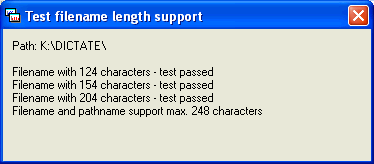
Check file system
This button checks if the file system can accept long filenames and write access is permitted. A successful test will result in a pop-up window as shown below; this can be closed by clicking on the cross in the top-right corner. If the test reports negative, please contact your DictaNet Sales-Partner.
The central Author, Typist, Column 1 and Column 2 lists and local Remarks list can be edited with the "Modify Lists" tool. If the lists are stored on a per folder basis ('Author and typist list per dictation folder' option is enabled) then first select the appropriate folder before starting the tool.